Testing Terraform with AWS Emulator
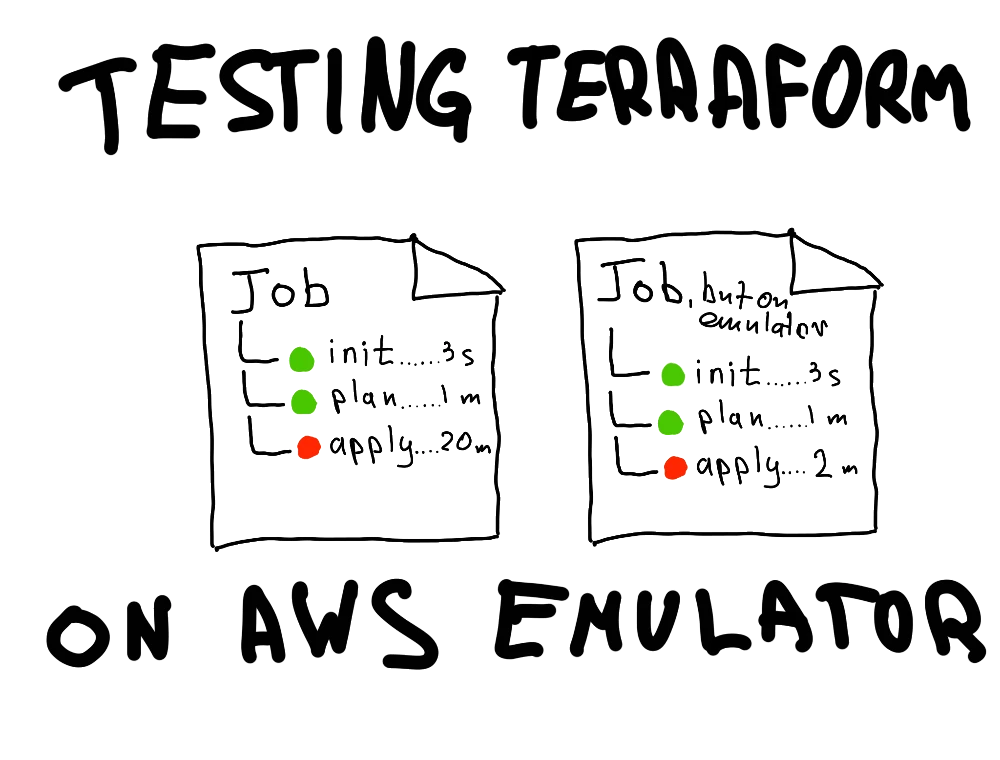
Terraform plan passes and shows all green and all the necessary resource changes. You trigger apply and... the job fails with some obscure error that a resource can't be changed. You open another pull request and try again. And perhaps you encounter an error again. Sounds familiar? I bet it does. I encountered issues like this so many times I'm afraid to count. But recently AWS released a new tool called Emulator that emulates actual AWS API endpoints. And it should be great for tasks just like that!
Defining the problem #
The problem with the difference between plan and apply jobs is that plan can't possibly emulate every actual API call against a live infrastructure. It's a safe assumption based on the static declarations we put into it – the order of application, the necessary parameters, the proper configuration values. These mock calls can't know for a fact that you already have a resource in AWS called "my-bucket-asdasdasd" or that you're trying to upgrade a PostgreSQL RDS instance from version 14 to version 18 without an explicit "apply immediately" flag. One may argue that one can always try to apply changes locally, but this kinda undermines the whole automation workflow. So what is the answer?
There are multiple tools that can emulate AWS services either partially or in full, but what they lack is the actual knowledge of the service architecture. It may be similar, but it won't be authentic, and sometimes this small difference may cause a lot of problems. After all, what can be the closest to an AWS API, if not the same AWS API, but ephemeral?
AWS Emulator #
The benefit of the AWS Emulator is that it's a self-contained binary (or Docker container) that can be utilized locally or in a CI workflow. This means the usual "Plan > Apply" terraform workflow changes to "Plan > Apply against mock AWS infrastructure to test the plan > Apply on actual AWS Infrastructure". This means slightly longer jobs, but if you're like me and apply jobs run on commits to the main branch after a PR, this saves you the hassle of creating a new branch just to fix the issue.
Running Terraform against local AWS Emulator #
Let's start with a local setup and see how we can utilize AWS Emulator with the actual Terraform code. All code is available in my example GitHub repository.
First up, installation. You can either install aws-emulator via package manager, or build it with Docker. I'll use Docker to keep my system clear of yet another package:
bash$ docker build -t aws-emulator .
$ docker images
IMAGE                 ID             DISK USAGE   CONTENT SIZE   EXTRA
aws-emulator:latest   3c8fdb957b45       1.24GB             0B          # wow it's chonky
$ docker run --rm -d -p 9297:9297 aws-emulator -a off
dcc416f234aaa3ec2966c9e8dcde7870f8d03057ec8a465cb8960617af82e501
$ docker logs dcc416f234aaa3ec2966c9e8dcde7870f8d03057ec8a465cb8960617af82e501
{"timestamp":"2026-11-12T14:51:16.261883Z","level":"INFO","fields":{"message":"aws-emulator emulator starting"},"target":"aws_emulator"}
This emulator collects usage and error telemetry: enabled (on by default; opt out any time); disable with EMULATOR_TELEMETRY=off or [telemetry] enabled = false in /home/emulator/.aws/emulator/config.toml
{"timestamp":"2026-11-12T14:51:16.270635Z","level":"INFO","fields":{"message":"emulator server information","endpoint_url":"https://127.0.0.1:9297","health_check_url":"https://127.0.0.1:9297/__admin/health","config_file":"/home/emulator/.aws/emulator/9297/config","ca_file":"/home/emulator/.aws/emulator/9297/ca.pem","java_truststore_file":"/home/emulator/.aws/emulator/9297/truststore.p12"},"target":"aws_emulator_server"}
{"timestamp":"2026-11-12T14:51:16.270655Z","level":"WARN","fields":{"message":"the emulator listens on 0.0.0.0, not loopback: other machines that can reach port 9297 can call it; bind 127.0.0.1 (-b 127.0.0.1) unless that is intended","bind_address":"0.0.0.0"},"target":"aws_emulator_server"}
{"timestamp":"2026-11-12T14:51:16.270659Z","level":"WARN","fields":{"message":"request authentication is off: the emulator accepts any request, signed or not; start it with -a on to require signatures","bind_address":"0.0.0.0"},"target":"aws_emulator_server"}
And it's up and running! In the example above I set the container to live without limits (official AWS documentation proposes to set memory and swap limits: --memory=2g --memory-swap=2g, but for local that's fine). I also disabled authorization (flag -a off) to simplify things a bit.
To be sure aws-emulator is up and running, let's query the admin endpoint:
bash$ curl -sk https://127.0.0.1:9297/__admin/health
ok
Okay, fake AWS is live, let's deploy some infrastructure!
I created an example AWS stack for Terraform and will use it in this article. First, let's configure Terraform to act against aws-emulator and not real AWS APIs. providers.tf will look like this:
hclprovider "aws" {
  access_key = var.access_key
  secret_key = var.secret_key
  region     = var.region

  insecure = true # The emulator serves HTTPS with a self-signed certificate. Skip verification.

  s3_use_path_style = true   # The emulator uses one IP endpoint. Put the bucket name in the path.

  # Do not call the real AWS or the instance metadata service.
  skip_credentials_validation = true
  skip_metadata_api_check     = true
  skip_requesting_account_id  = true
  skip_region_validation      = true

  # Send every service to the emulator instead of AWS.
  endpoints {
    ec2        = var.emulator_endpoint
    lambda     = var.emulator_endpoint
    iam        = var.emulator_endpoint
    sts        = var.emulator_endpoint
    cloudwatch = var.emulator_endpoint
    logs       = var.emulator_endpoint
    events     = var.emulator_endpoint
    sns        = var.emulator_endpoint
  }

  default_tags {
    tags = var.tags
  }
}
The difference between actual live infrastructure and a fake one is that we set up a bunch of flags to allow insecure connections (perhaps turning authentication off wasn't actually simpler?) and we set up an endpoint for each service we use in the setup to an emulator endpoint, which lives in the local Docker container:
hcl# variables.tf
variable "emulator_endpoint" {
  description = "Base URL of the AWS Emulator"
  type        = string
  default     = "https://127.0.0.1:9297"
}
...
The rest of the configuration is as usual: resources, variables, modules (if any). Just what your project has.
Let's proceed and test our setup. (I'll omit full terraform output otherwise this article would be 3 kilometers long)
bash$ cd terraform/
$ terraform init
Initializing the backend...
...
Terraform has been successfully initialized!
...
$ terraform plan
...
Plan: 15 to add, 0 to change, 0 to destroy.

Changes to Outputs:
  + alarm_name          = "ttwae-lambda-errors"
  + event_rule_arn      = (known after apply)
  + lambda_function_arn = (known after apply)
  + security_group_id   = (known after apply)
  + sns_topic_arn       = (known after apply)
  + subnet_id           = (known after apply)
  + vpc_id              = (known after apply)
Plan works! That's good to see, but not what we're here for. Still, a good sign. Now for the real test.
bash$ terraform apply --auto-approve
...
Apply complete! Resources: 15 added, 0 changed, 0 destroyed.

Outputs:

alarm_name = "ttwae-lambda-errors"
event_rule_arn = "arn:aws:events:us-east-1:000000000000:rule/ttwae-schedule"
lambda_function_arn = "arn:aws:lambda:us-east-1:000000000000:function:ttwae-worker"
security_group_id = "sg-00000000000000085"
sns_topic_arn = "arn:aws:sns:us-east-1:000000000000:ttwae-alarms"
subnet_id = "subnet-00000000000000089"
vpc_id = "vpc-00000000000000080"
And apply also works! Amazing!
Sadly, the running aws-emulator container doesn't show in its logs which API requests it receives and what's happening under the hood, but I guess the tool is good enough as it is.
When you're done, stop the container:
bash$ docker stop dcc416f234aaa3ec2966c9e8dcde7870f8d03057ec8a465cb8960617af82e501
A container started with --rm removes itself after stopping, so no additional cleanup is needed. And as for the emulator -- it stores its state in memory, so each container restart drops all record of previous actions and any stale state.
Running Terraform against AWS Emulator in CI pipeline #
Now for the real test: can we wrap the desired logic inside a CI pipeline? Let's think.
For successful invocation in the pipeline we will need almost everything the same, but we will be limited by time (the faster -- the better, and overall reasonable timeouts) and resources.
The workflow with terraform apply against aws-emulator is shown down below. For it I decided to try out package manager installation (builders are ephemeral anyway) and proper authentication. Full workflow with actual successful runs can be found in the example GitHub repository.
yaml---
name: terraform-against-emulator
on:
  push:
    branches: [main]
permissions:
  contents: read
jobs:
  terraform:
    runs-on: ubuntu-latest
    env:
      EMULATOR_PORT: "9297"
      # Empty keys make the provider fall back to the shared credentials
      # file that the emulator writes. insecure=false verifies the
      # emulator cert through AWS_CA_BUNDLE
      TF_VAR_access_key: ""
      TF_VAR_secret_key: ""
      TF_VAR_insecure: "false"

    steps:
      - uses: actions/checkout@3d3c42e5aac5ba805825da76410c181273ba90b1 # v7.0.1
      - name: Install the AWS Emulator
        run: |
          curl -fsSLo aws-emulator.deb \
            https://downloads.aws.com/aws-emulator/packages/aws-emulator/LTS/latest/aws-emulator_amd64.deb
          sudo apt-get install -y ./aws-emulator.deb
          aws-emulator -v
      - name: Start the emulator with signature checks on
        run: |
          nohup aws-emulator > /tmp/aws-emulator.log 2>&1 &
          echo "Waiting for the emulator to answer..."
          CA="$HOME/.aws/emulator/${EMULATOR_PORT}/ca.pem"
          for i in $(seq 30); do
            if [ -f "$CA" ] && curl -sf --cacert "$CA" \
                "https://127.0.0.1:${EMULATOR_PORT}/__admin/health" >/dev/null; then
              echo "Emulator is ready."
              exit 0
            fi
            sleep 1
          done
          echo "Emulator did not become ready." >&2
          cat /tmp/aws-emulator.log >&2
          exit 1
      - name: Point Terraform at the emulator credentials and certificate
        run: |
          DIR="$HOME/.aws/emulator/${EMULATOR_PORT}"
          {
            echo "AWS_SHARED_CREDENTIALS_FILE=$DIR/emulator_credentials"
            echo "AWS_CONFIG_FILE=$DIR/config"
            echo "AWS_CA_BUNDLE=$DIR/ca.pem"
            echo "AWS_REGION=us-east-1"
            echo "AWS_DEFAULT_REGION=us-east-1"
            echo "AWS_EC2_METADATA_DISABLED=true"
            echo "AWS_DISABLE_HOST_PREFIX_INJECTION=true"
          } >> "$GITHUB_ENV"
      - uses: hashicorp/setup-terraform@dfe3c3f87815947d99a8997f908cb6525fc44e9e # v4.0.1
        with:
          terraform_wrapper: false
      - run: terraform -chdir=terraform init -input=false
      - run: terraform -chdir=terraform validate
      - run: terraform -chdir=terraform plan -input=false
      - run: terraform -chdir=terraform apply -auto-approve -input=false
This is a crude excerpt of the actual glorious workflow file that outlines the most important steps: emulator installation, terraform setup, plan and apply. On the example terraform architecture the whole pipeline took 1m25s, which is okay in my opinion, but there is room for improvement: sprinkle some caching on top, leave validation, format check for local hooks, etc.
Running a deliberately failing apply job #
It's always nice when code someone wrote on the internet works from the start after you copy-paste it onto your machine. That's why I always run the described processes myself -- building, testing, fixing, retrying -- before publishing an article. But showing only the positive scenarios creates a false sense of trust in the tool.
Let's break something on purpose.
In the example codebase I added a variable that, when enabled, makes the stack try to deploy a resource with an erroneous declaration. It will pass the plan job, but fail on apply.
hclvariable "enable_failure_demo" {
  description = "Create a DynamoDB table with an invalid name."
  type        = bool
  default     = false
}
Setting this variable to true at runtime will break our stack. Let's see:
bash$ cd terraform/
$ terraform init
Initializing the backend...
...
$ terraform plan -var 'enable_failure_demo=true'
...
Plan: 16 to add, 0 to change, 0 to destroy.

Changes to Outputs:
...
  + failure_demo_table_arn = (known after apply)
...
$ terraform apply -auto-approve -var 'enable_failure_demo=true'
...
╷
│ Error: creating AWS DynamoDB Table (ab): operation error DynamoDB: CreateTable, https response error StatusCode: 400, RequestID: 4TLD3XUB94783KNA4C76L8BEZ26UU8LS4IBN2IEKZJLAK4NMVTQ4, api error ValidationException: 1 validation error detected: Value 'ab' at 'tableName' failed to satisfy constraint: Member must have length greater than or equal to 3
│
│   with aws_dynamodb_table.bad_name[0],
│   on dynamodb.tf line 10, in resource "aws_dynamodb_table" "bad_name":
│   10: resource "aws_dynamodb_table" "bad_name" {
│
And there we have it. The exact issue that arises only against actual API calls and not during a plan job.
For scenarios exactly like this, the emulator is priceless.
Limitations and considerations #
AWS Emulator is AWESOME. I'm rarely that excited about new tools lately (mostly because almost all of them are near/about AI), but this one is just so good and scratches that exact itch I felt for so long.
Still, it's far from perfect.
For starters, it can't effectively emulate IAM policies and permission checks. This is a bummer, because permission validation is such a crucial step for production-ready security. Here's hoping that the tool will evolve further and it will be included in future updates.
Second, as a tool still a work-in-progress[1], its capabilities are quite limited. Even while writing the article I encountered several cases of 501 NotImplemented. It complicates things a bit if your infrastructure setup is huge and has a lot of quirks and weird configurations and super new services. Still, AWS releases new versions quite often, and they're quite open about Emulator limitations, which is nice.
And last, but not least, is telemetry. AWS is explicit that it gathers telemetry and what this telemetry includes. This is honest behaviour and I like that approach. They even allow you to disable the telemetry, which further increases my trust in this tool. I understand the rationale behind this functionality (the tool is actively developed, they need the data to understand usage patterns and what goes wrong), but in the age of constant surveillance from Big Tech at every corner it still raises a slight concern. But then again, for the ultra-paranoid folks the code is open source and can be rebuilt with telemetry torn out of it.
As of the moment of writing this article, AWS Emulator has been live for 1 day. ↩︎